# Adding and Editing Components

{% stepper %}
{% step %}

#### Component Setup

Open your character Blueprint and add <mark style="color:$success;">**AC\_PhoneComponent**</mark> and <mark style="color:$success;">**AC\_BankAndShop**</mark>.

<figure><img src="https://671943288-files.gitbook.io/~/files/v0/b/gitbook-x-prod.appspot.com/o/spaces%2FSFrgIAPveQGFfoCGsTJg%2Fuploads%2FT2i7tJRFSDksrwbidO9U%2F2.jpg?alt=media&#x26;token=94ec7b92-88e1-495b-af95-e9dbb41b7a33" alt=""><figcaption></figcaption></figure>
{% endstep %}

{% step %}

#### Navigation Setup

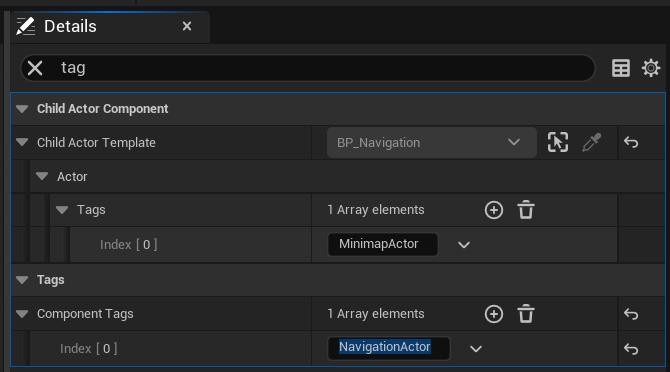
Add a Child Actor Component and select <mark style="color:$success;">**BP\_Navigation**</mark> as the class. Then search for `tag` and add the <mark style="color:$success;">**NavigationActor**</mark> tag.

<figure><img src="https://671943288-files.gitbook.io/~/files/v0/b/gitbook-x-prod.appspot.com/o/spaces%2FSFrgIAPveQGFfoCGsTJg%2Fuploads%2F4Ehchh5bT8dIVjyNv2v1%2F3.jpg?alt=media&#x26;token=78a6418c-5d88-4ef8-8878-44d61d0c57a2" alt=""><figcaption></figcaption></figure>

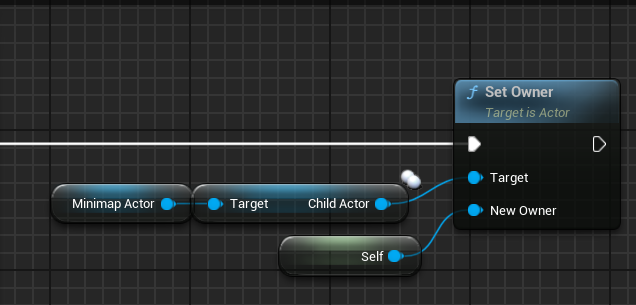
\*After adding the component, you must go to your Character Blueprint's BeginPlay event. Get the Child Actor Component and use the Get Child Actor node to get the minimap actor reference. Then, use the Set Owner node and set your character (Self) as the New Owner. This is required for the minimap to track your location and rotation.

<figure><img src="https://671943288-files.gitbook.io/~/files/v0/b/gitbook-x-prod.appspot.com/o/spaces%2FSFrgIAPveQGFfoCGsTJg%2Fuploads%2FwfHTo12Ln35hB5YVqPbB%2Fimage.png?alt=media&#x26;token=b6533c1f-7723-4c5b-98ec-985c37581a77" alt=""><figcaption></figcaption></figure>
{% endstep %}

{% step %}

#### Camera Setup

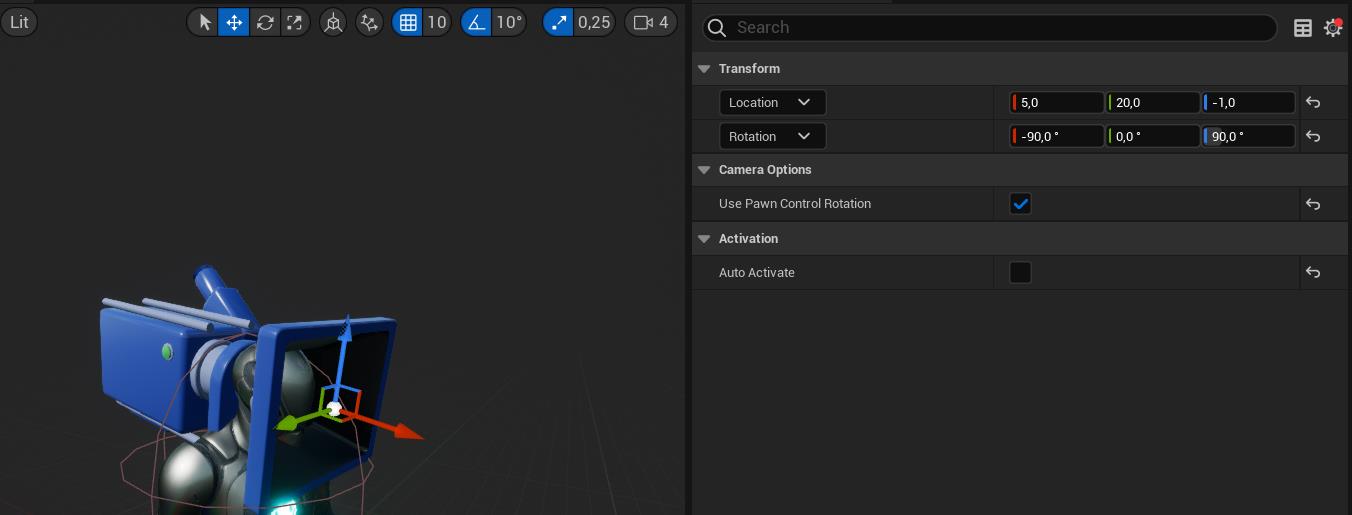
If your character does <mark style="color:$warning;">not have</mark> an FPS camera, open <mark style="color:$success;">**BP\_DemoCharacter**</mark> in the phone system.\
Copy the camera component called <mark style="color:$success;">**FPSCamera**</mark> and add it to your character.\
Then make the necessary location and rotation adjustments.

<figure><img src="https://671943288-files.gitbook.io/~/files/v0/b/gitbook-x-prod.appspot.com/o/spaces%2FSFrgIAPveQGFfoCGsTJg%2Fuploads%2FT1b15XFwrI23e6G85WOk%2F4.jpg?alt=media&#x26;token=2a341803-b352-4fe8-b3ea-cae6b84912dd" alt=""><figcaption></figcaption></figure>

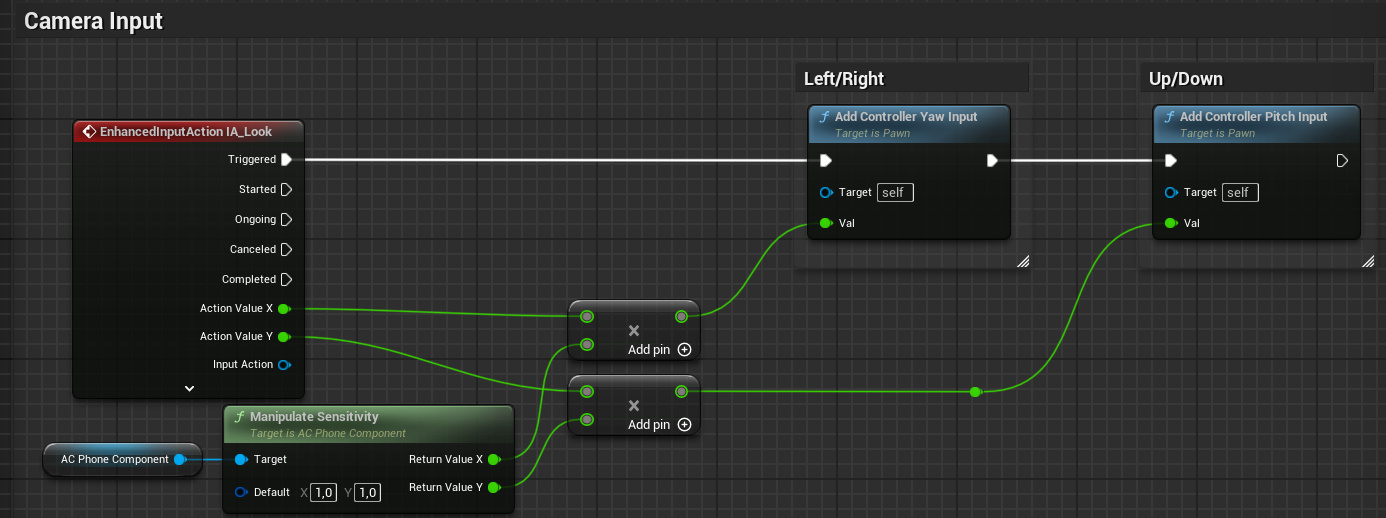
\*To reduce mouse sensitivity while using the camera zoom, use the Manipulate Sensitivity function from the AC\_PhoneComponent. Multiply your Input Action values by the return values of this function as shown in the image below. This will ensure your camera movement feels smooth and controlled during zoom.

<figure><img src="https://671943288-files.gitbook.io/~/files/v0/b/gitbook-x-prod.appspot.com/o/spaces%2FSFrgIAPveQGFfoCGsTJg%2Fuploads%2F0hN5L7i1s1FjBF9FTXQJ%2Fimage.png?alt=media&#x26;token=d25316c0-0adf-45db-aeef-846b1021c118" alt=""><figcaption></figcaption></figure>
{% endstep %}

{% step %}

### Character Mesh Setup

To manage phone animations correctly, select your character's Mesh in the Character. In the Details panel, search for Tags and add the tag: <mark style="color:$success;">**CharacterMesh**</mark>.
{% endstep %}

{% step %}

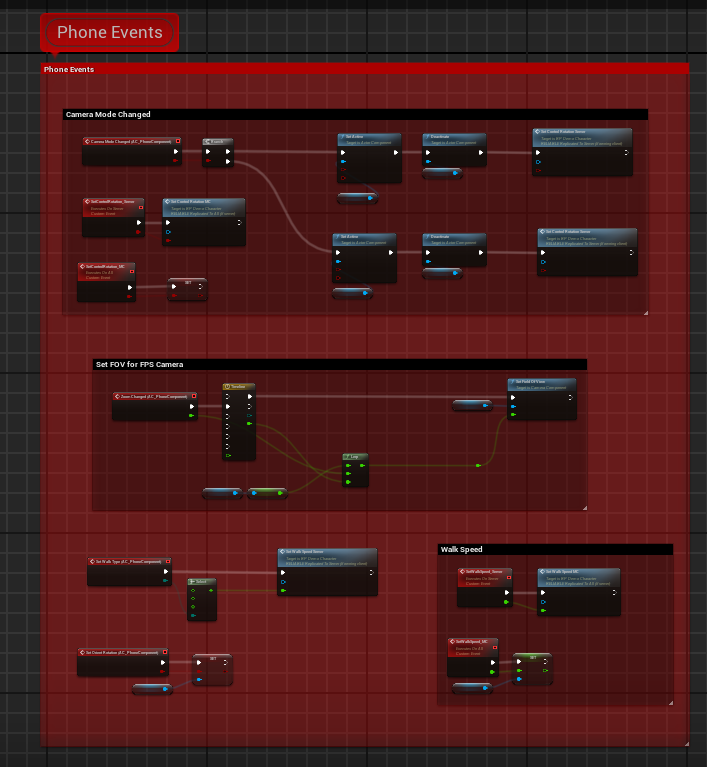
### Event Graph Integration

Copy the code from the "Phone Events"  comment blocks in <mark style="color:$success;">**BP\_DemoCharacter**</mark>.\
Paste it into the Event Graph in your Character Blueprint.

<figure><img src="https://671943288-files.gitbook.io/~/files/v0/b/gitbook-x-prod.appspot.com/o/spaces%2FSFrgIAPveQGFfoCGsTJg%2Fuploads%2Fp8Iz7VOoTsBTy9NboWA4%2Fimage.png?alt=media&#x26;token=f4e83e68-8c15-463e-97a1-6eece691f144" alt=""><figcaption></figcaption></figure>
{% endstep %}
{% endstepper %}